
1. Install Gujarati (and Hindi) Language Support
First, you need to add Gujarati language to your Linux. This will install the necessary files and fonts required for Gujarati and Hindi Unicode support.
a) Go to System --> Administration --> Language Support.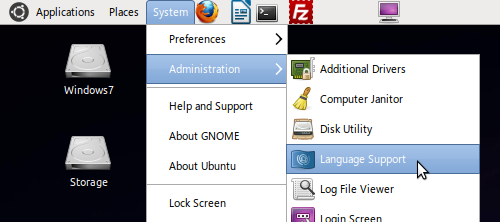
b) Click Install/Remove Languages.
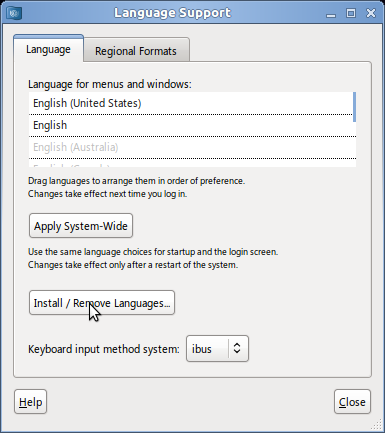
c) Select Gujarati and Hindi checkboxes. Let Linux install the languages. Once it finishes, go to next step. You may need to restart.
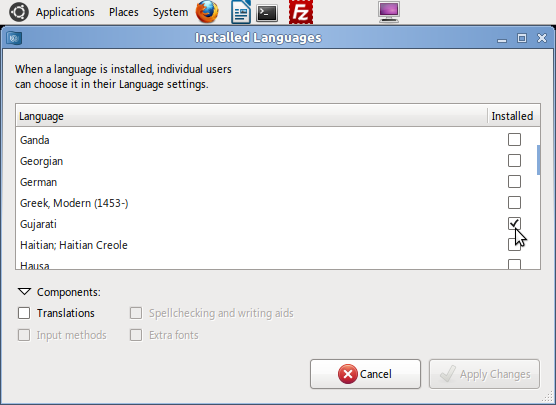
2. Download in.txt File and Rename to in
3. Modify or Replace in
The keyboard layouts for all Indic languages are found in a file called in located in ./usr/share/X11/xkb/symbols folder. This folder contains keyboard layouts of all languages installed. There are two ways you can install the phonetic layouts. You can either replace the file with the one you downloaded above. Replacing this file will remove the default layouts for all Indic languages and only give you the Gujarati Phonetic and Hindi Phonetic layouts.
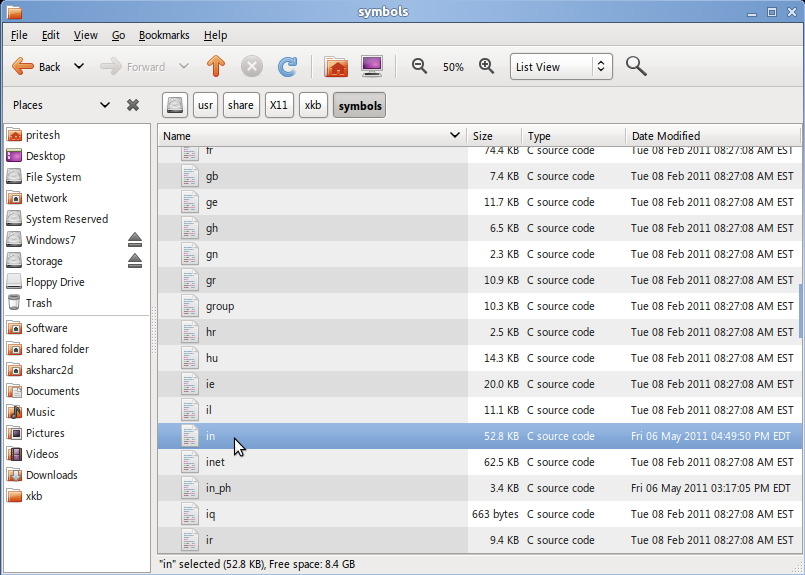
If you want to keep the default layouts of Indic languages and add the phonetic layouts, you need to modify the file using a text editor with root access and add the text in the in file you downloaded. Just add the text found in the in file you downloaded to the end of your system's in file.
4. Making the Layout Appear in Your Keyboard Options
Once you modify or replace the in file, you still will not have an option to choose the layout. You have to add it as an option. You need to add the following line to the file called base.lst, evdev.lst, and xfree86.lst in the folder ./usr/share/X11/xkb/rules/:
guj-ph          in: Gujarati Phonetic
hin-ph          in: Hindi Phonetic
Next, add the following entries to base.xml, evdev.xml, and xfree86.xml files found in folder ./usr/share/X11/xkb/rules/:
<variant>
<configItem>
<name>guj-ph</name>
<description>Gujarati Phonetic</description>
<languageList><iso639Id>guj</iso639Id></languageList>
</configItem>
</variant>
<variant>
<configItem>
<name>hin-ph</name>
<description>Hindi Phonetic</description>
<languageList><iso639Id>hin</iso639Id></languageList>
</configItem>
</variant>
Although I mentioned to edit 3 pairs of files (6 total), not each is required to be edited. However, to ensure your keyboard layout shows, I recommended editing all three. There's no harm in editing all of them. After you have edited the files, log off, then log back on for changes to take effect.
5. Adding the Layout to Your Keyboard Options
Lastly, you need to add Gujarati Language to the keyboard options so you can select it when needed. The example below shows how it's done in Ubuntu.
a) Go to System --> Preferences --> Keyboard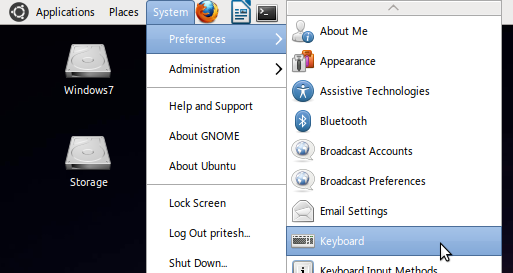
b) Then, click on the Layout tab, then click Add...
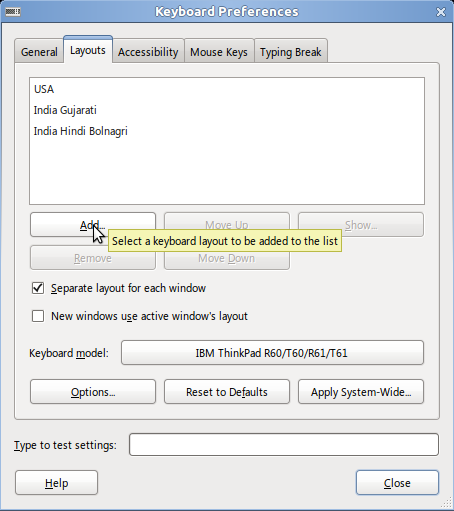
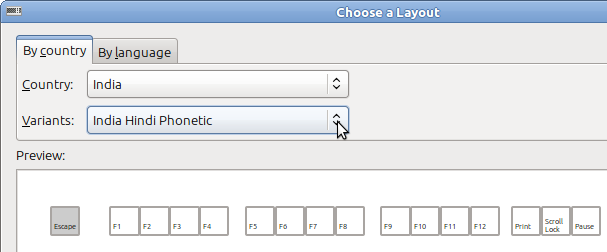
c) Next, add Gujarati Phonetic and Hindi Phonetic layouts by selecting from the dropdown lists. These options will appear if you followed all steps correctly above and after loggin back on again.
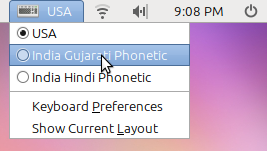
d) Lastly, if you followed all steps correctly, you'll also see it in your language selection icon in the status bar.
The Gujarati Unicode font usually included with Linux is Lohit-Gujarati.